
On-Demand
Video Tutorials
This online teacher training consists of short videos providing detailed information on a specific aspect of Boxlight educational technology.
Select a topic to get started
From object cloning to adding content to your lessons, these tutorials will get a teacher up and running easily and quickly. If you have five minutes and need a refresher or want to learn something new, take a look!
Robo E3 Pro
Robo E3 Pro – Leveling
Robo E3 Pro – Connecting to the Internet
Labdisc
Labdisc – Setting Up Experiments in Globilab

Labdisc – Caching Data and Transferring it into Globilab
Labdisc – Connecting Your Labdisc to Your Device
MyStemKits
MyStemKits – Welcome to MyStemKits
MyStemKits – How to Find Lessons for Your Labdisc or MyBot
MyStemKits – Individual User Analytics
MyStemKits – Adding Users and Sharing Printers
MyStemKits – School District Analytics
MyStemKits – How To Download a Lesson or Design Challenge
MyStemKits – How to Send a 3D Print in MyStemKits
RoboCloud – RoboPrint – Tinkercad
Robo – Getting Started with RoboPrint

Robo – Combining Multiple Files in Tinkercad
Robo – Using RoboCloud with Tinkercad
Robo – RoboPrint Deep Dive
Xploris
Xploris – XploriLab Sensing Overview
Xploris – Understanding the XploriLab Modules
Xploris – XploriLab Memory Full
Xploris – Connecting to XploriLab
Xploris – XploriLab Animator Overview
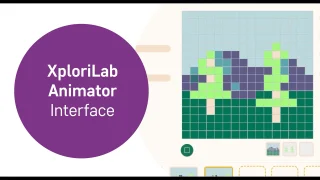
Xploris – XploriLab Animator Interface
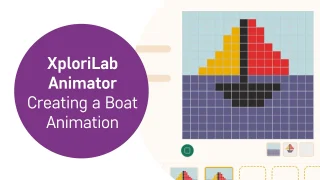
Xploris – XploriLab Animator Creating a Boat Animation
Xploris – XploriLab Control Module Intro
Xploris – XploriLab Control Module Basics
Xploris – XploriLab Data Logger - Overview
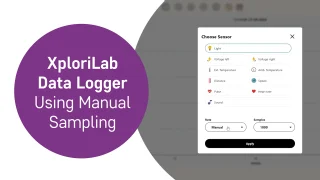
Xploris – XploriLab Data Logger - Using Manual Sampling
Xploris – XploriLab Data Logger - Downloading an Experiment
Xploris – XploriLab Data Logger - Markers and Annotations
Xploris – XploriLab Data Logger - Combining Data
Xploris – Using the Predict Feature in XploriLab Data Logger
Robo E3
Robo E3 – Connecting Your Robo E3 to MyStemKits
Robo E3 – 3D Printing Using RoboCloud
Robo E3 – Calibrating Your Robo E3
Robo E3 – Setting Up WiFi
Robo E3 – Loading and Changing Your Filament
Robo E3 – Unclogging the Stepper Motor
MyClass
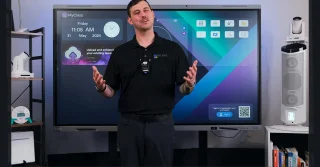
MyClass – Sign-In Options
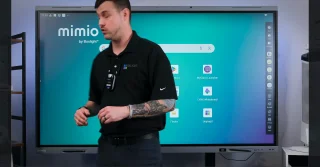
MyClass – App vs Launcher
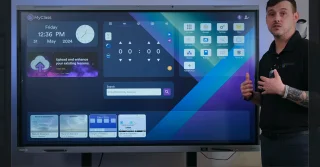
MyClass – Navigating the Dashboard
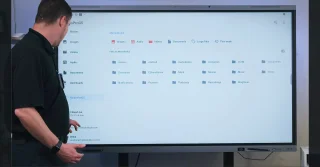
MyClass – Accessing Your Files
MyClass – Classes

MyClass – Reports
MyClass – Exploring Settings Options

MyClass – Games
MyClass – Importing Lesson Content
MyClass – Inserting Media into Lessons
MyClass – Lesson Search
MyClass – Managing Content Storage
MyClass – Mimio AI for Lesson Builder
MyClass – Mimio AI for Quiz Builder
MimioPro G Interactive Display
MimioPro G – Introduction
MimioPro G – Accessing Files
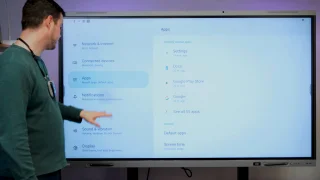
MimioPro G – Android Quick Settings Menu
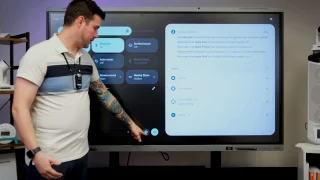
MimioPro G – Accessibility Features
MimioPro G – AirClass
MimioPro G – Connecting Bluetooth
MimioPro G – Customizing the Side Toolbar
MimioPro G – Dynascrybe
MimioPro G – Setting up a PIN
MimioPro G – Multiple Users and NFC Card Setup
MimioPro G – Multiwindow Mode 2
MimioPro G – Organizing and Grouping Apps
MimioPro G – Settings App in Application Drawer
MimioPro G - Live Transcribe App
MimioPro G - Signing Into Your Google Account and SSO
MimioPro G - Split Screen Mode
MimioPro G - Using Picture-in-Picture (PIP)
MimioPro G - Using the Google Play Store
MimioPro G - Using the Google Search
MimioPro G - Widget Access and Management
Networked Device Management System
MDM / NDMS – Adding a Device
MDM / NDMS – Adding Users

MDM / NDMS – Authentication Token
MDM / NDMS – Android Device Settings Repository
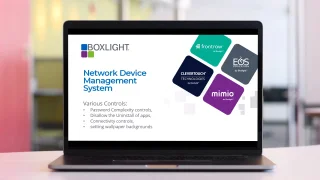
MDM / NDMS – Various Controls
MDM / NDMS – Manage Groups and Filters
MDM / NDMS – Apply Commands and Operations to Devices
MDM / NDMS – Remote Screen View and Control
MDM / NDMS – Remote Software Installation
MDM / NDMS – Install Packages Directly from Google Play
MDM / NDMS – Execute Commands
MDM / NDMS – Ad-Hoc One-Time Session
MimioConnect
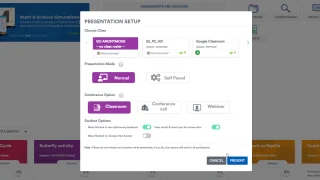
MimioConnect – Presenting to Guests
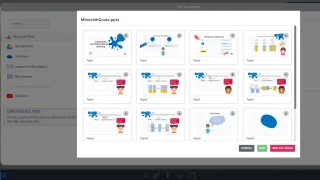
MimioConnect – Upload Lesson Material
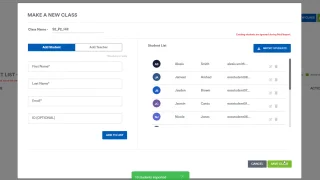
MimioConnect – Import Students Using CSV
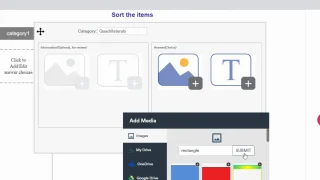
MimioConnect – Add Sorting Activity
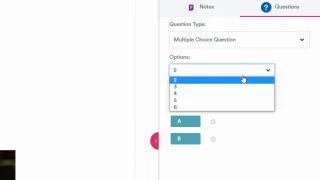
MimioConnect – Add Question Types
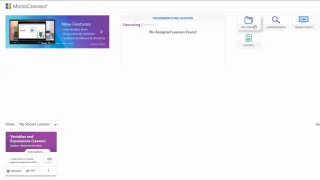
MimioConnect – Navigate the Dashboard
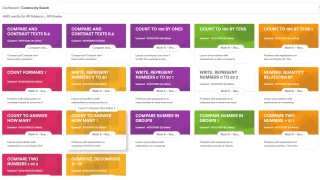
MimioConnect – Lesson Search

MimioConnect – Lesson Preview
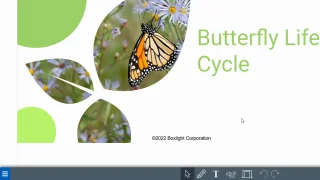
MimioConnect – Edit a Lesson
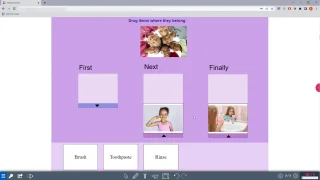
MimioConnect – Drag and Drop Activity
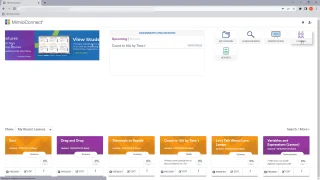
MimioConnect – Create a Class
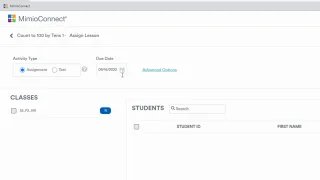
MimioConnect – Assign a Lesson
ProColor Series 3
MimioPro 4 – Introduction
MimioPro 4 – Introducing the CleverLive Store
ProColor 3 - Getting started with your ProColor
ProColor 3 - Explore the New Opera Browser and Annotation Features
ProColor 3 - How to Download Apps to ProColor with Cleverstore
ProColor 3 - How to Install the August 2022 Firmware Update
ProColor 3 - Use MimioMessage with the ProColor 3
ProColor 3 - Using the Finder
ProColor 3 - Connecting external devices
ProColor 3 - Using the sidebar tools
ProColor 3 - Sharing content with Unplug'd
ProColor 3 - Using the PC Module
ProColor 3 - Using the Note application
ProColor 3 - Teaching with Chrome
ProColor 3 - Getting started with MimioStudio
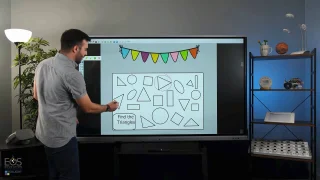
ProColor 3 - Sample lesson demonstration – elementary level
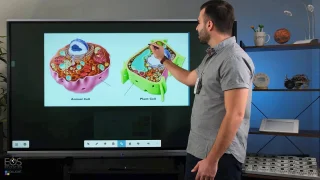
ProColor 3 - Sample lesson demonstration – secondary level
ProColor 3 - Hybrid teaching with the ProColor3
ProColor 3 - Exploring the ProColor3 homescreen
ProColor 3 - Cloud connection and security
ProColor 3 - New features in Note
ProColor 3 - Operating the ProColor mobile stand
ProColor 3 - Using Microsoft 365 apps with ProColor 3
ProColor 3 - Using Microsoft Teams with ProColor3
ProColor 3 - Downloading software with MimioMarket
MimioPro 4 Interactive Display
MimioPro 4 – Introduction

MimioPro 4 – Getting Started
MimioPro 4 – Organizing Files and Cloud Storage
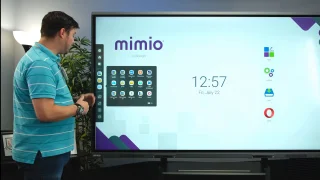
MimioPro 4 – Customize your Toolbar
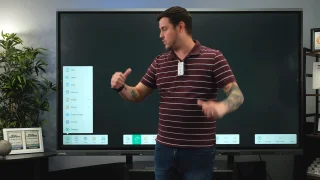
MimioPro 4 – Save and Share Your Notes
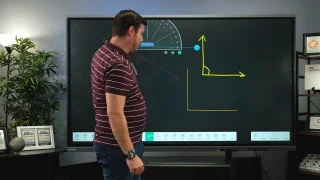
MimioPro 4 – Explore New Features in Note
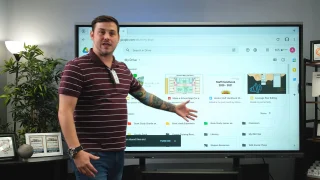
MimioPro 4 – Using the Opera Browser in Your Classroom

MimioPro 4 – Download and Install Cleverstore Apps
MimioPro 4 – Exploring User Profiles
MimioPro 4 – Access Files in Cloud Storage
MimioPro 4 – Adjust Security Settings
MimioPro 4 – Access Online Training and MyStemKits
MimioPro 4 – Engage Your Students with AirClass
MimioPro 4 – Record Your Lessons on the MimioPro 4

MimioPro 4 – Share Your Screen Wirelessly with Clevershare
MimioPro 4 – Introducing the CleverLive Store
Shorts
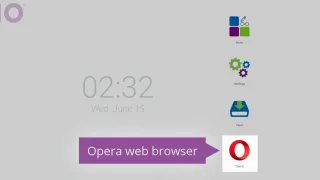
MimioPro 4 Shorts – Use the MimioPro 4 Home Screen
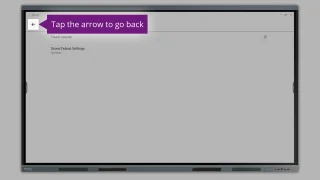
MimioPro 4 Shorts – Access Android System Settings
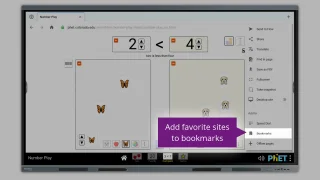
MimioPro 4 Shorts – Browse the web with Opera
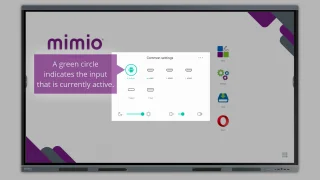
MimioPro 4 Shorts – Open the Input Menu
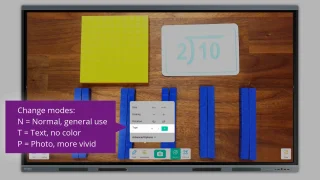
MimioPro 4 Shorts – Use the Document Camera
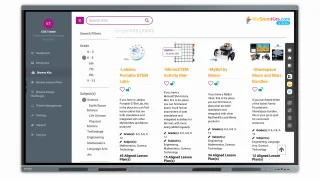
MimioPro 4 Shorts – Browse MyStemKits
MimioPro 4 Shorts – Get Online Training on the MimioPro-4
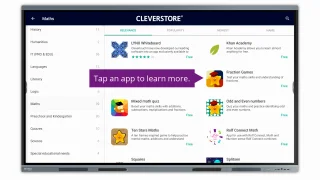
MimioPro 4 Shorts – Install Apps with Cleverstore
MimioPro 4 Shorts – Navigate the Android Toolbar
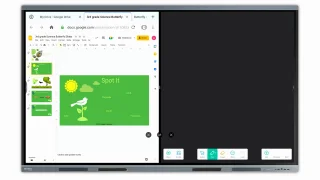
MimioPro 4 Shorts – Split Your Screen
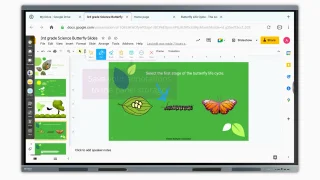
MimioPro 4 Shorts – Access the Annotation Tool
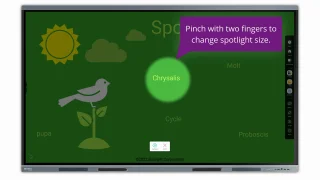
MimioPro 4 Shorts – Explore the Spotlight Tool
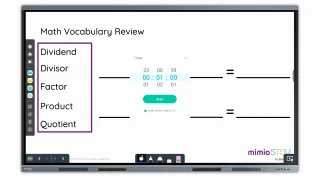
MimioPro 4 Shorts – Explore the Timer and Stopwatch Tools
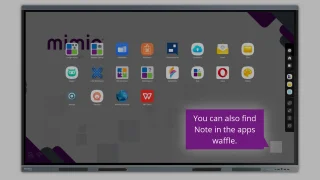
MimioPro 4 Shorts – Accessing the Note App
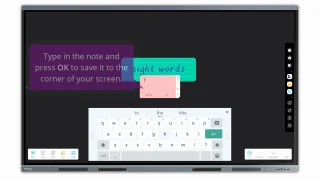
MimioPro 4 Shorts – Note App Grid and Sticky Notes Tools
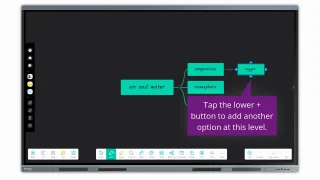
MimioPro 4 Shorts – Note App Mind map and Preview Tools
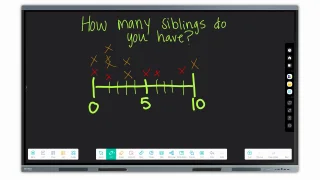
MimioPro 4 Shorts – Note App Select Pen and Eraser Tools
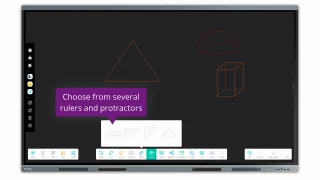
MimioPro 4 Shorts – Note App Shape and Ruler Tools
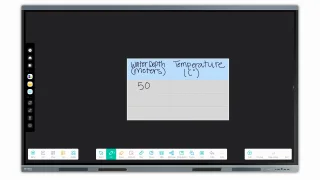
MimioPro 4 Shorts – Note App Table Tool
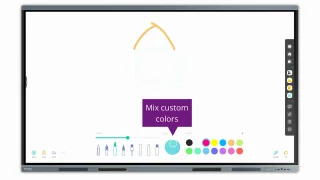
MimioPro 4 Shorts – Explore the Palette App
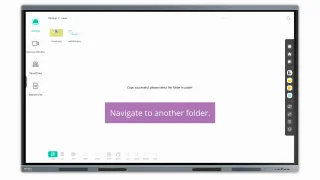
MimioPro 4 Shorts – Open and Copy Files
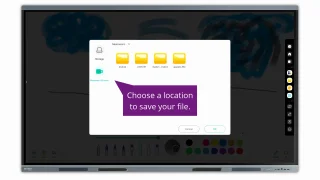
MimioPro 4 Shorts – Save Notes in the Files App

MimioPro 4 Shorts – Using the MimioPro 4 Files App
MimioTeach Portable Interactive Whiteboard
MimioTeach Installation Guide
MimioStudio Classroom Software
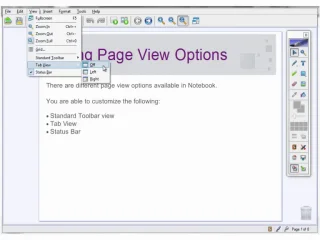
Using page view options
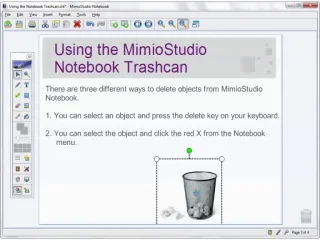
Using the notebook trashcan
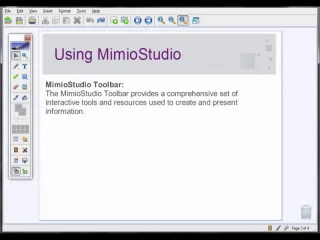
Using MimioStudio
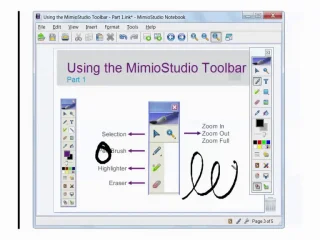
Using the toolbar (part 1)
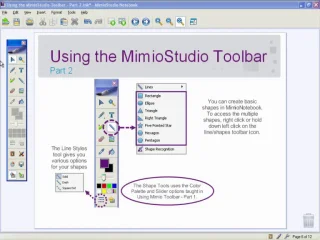
Using the toolbar (part 2)
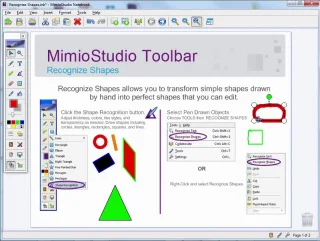
Recognize shapes
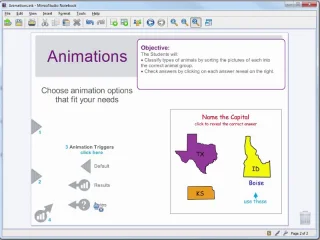
Object Animation
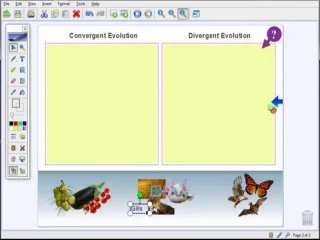
Object Grouping

Object Ordering
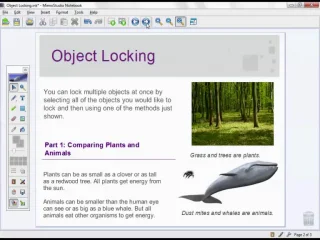
Object Locking
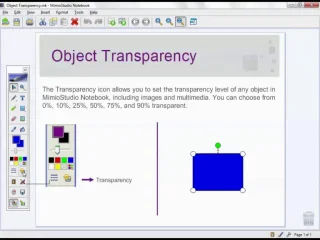
Object Transparency
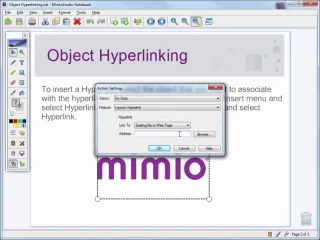
Hyperlinking
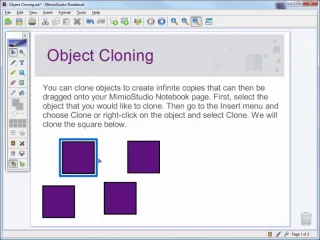
Object Cloning
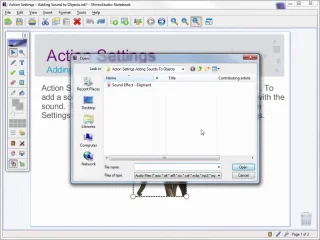
Object Action settings
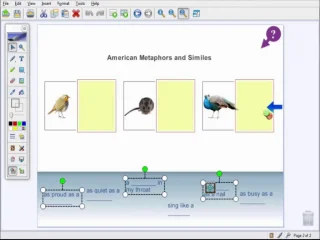
Object Alignment
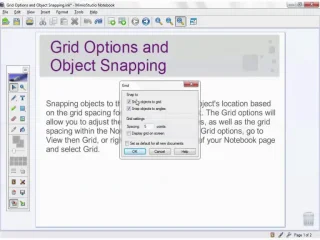
Grid options and objects snapping
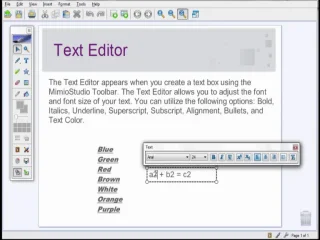
Text editor
Background and templates
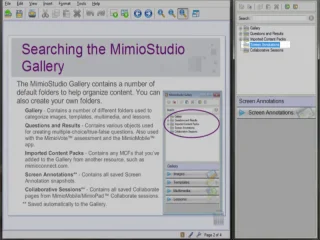
Searching the MimioStudio gallery
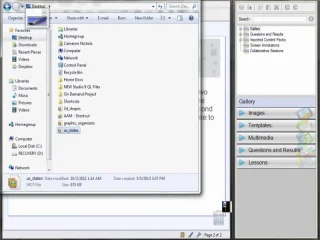
Sharing galleries
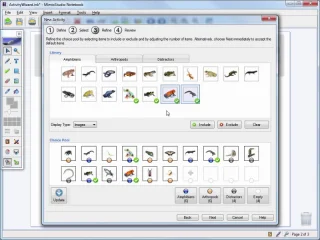
MimioStudio Activity Wizard
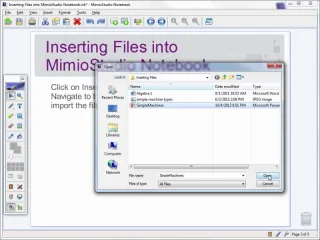
Inserting files into MimioStudio Notebook
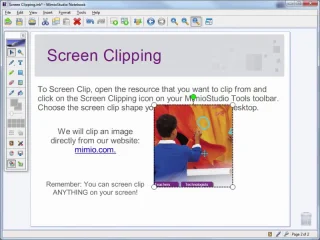
Screen clipping
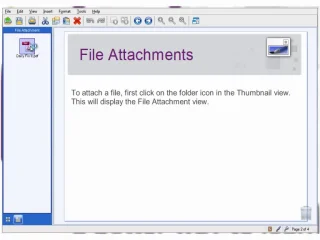
File attachments
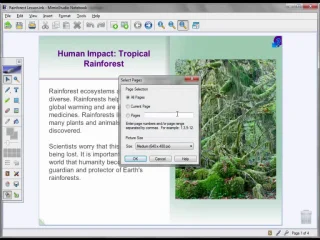
File saving format options
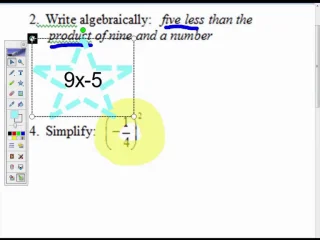
Presenting Lessons - Screen Annotations
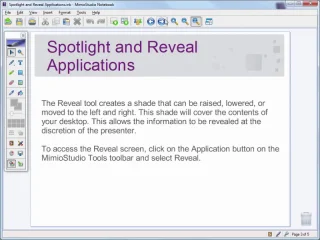
Presenting Lessons - Spotlight and reveal applications
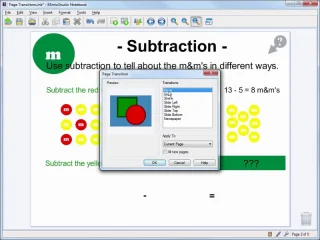
Presenting Lessons - Page transitions
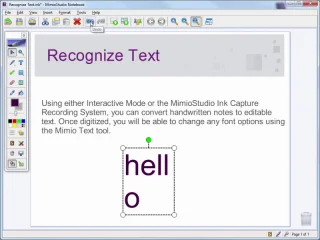
Recognize text
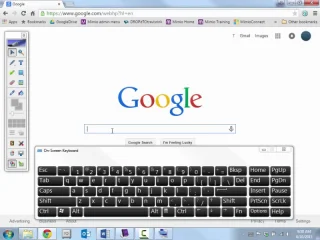
Text tools
MimioStudio recorder
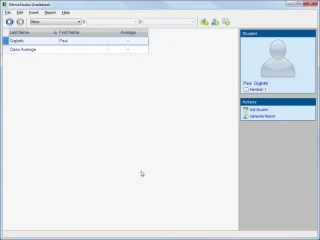
Gradebook - The Basics
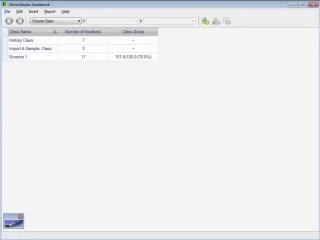
Gradebook - Import and Export Features

Gradebook - Generating reports
MimioMobile Tutorials
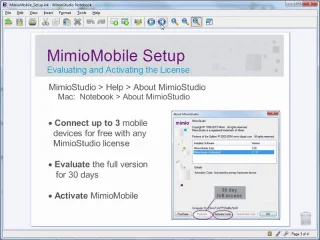
MimioMobile – Setting Up
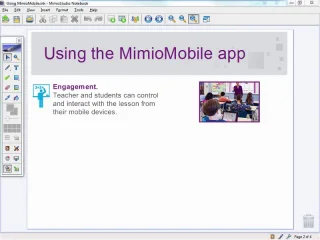
MimioMobile – Using the App
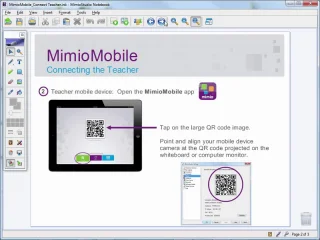
MimioMobile – Connecting the Teacher
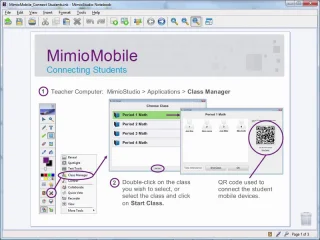
MimioMobile – Connecting Students
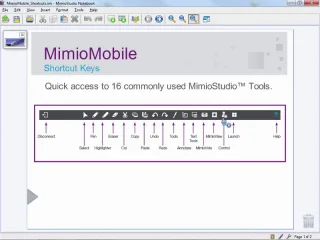
MimioMobile – Shortcuts
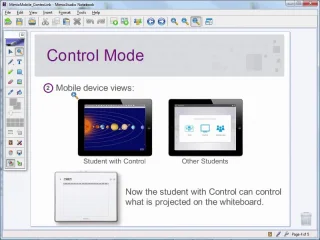
MimioMobile – Control
MimioStudio – Control
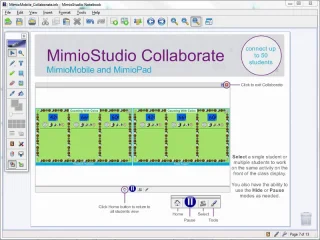
MimioStudio – Collaborate
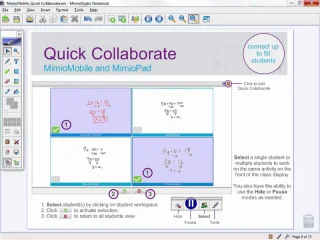
MimioMobile – Quick Collaborate
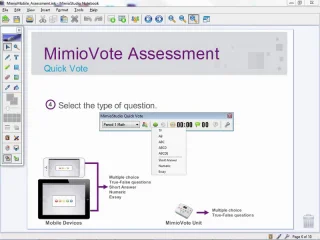
MimioVote - Assessment
MimioVote Assessment
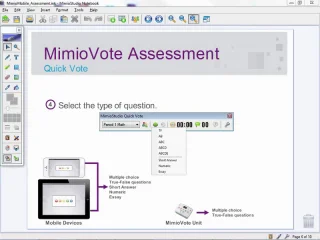
Using MimioVote assessment
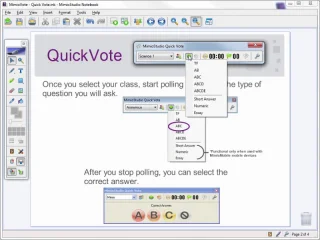
Quick vote

Text question templates
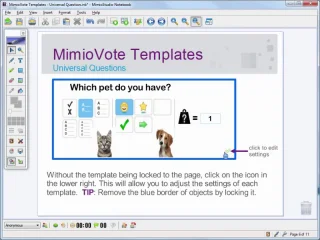
Universal question templates
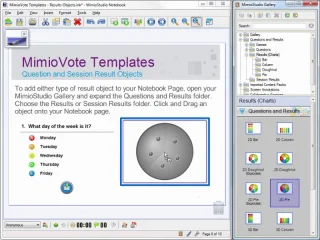
Result objects